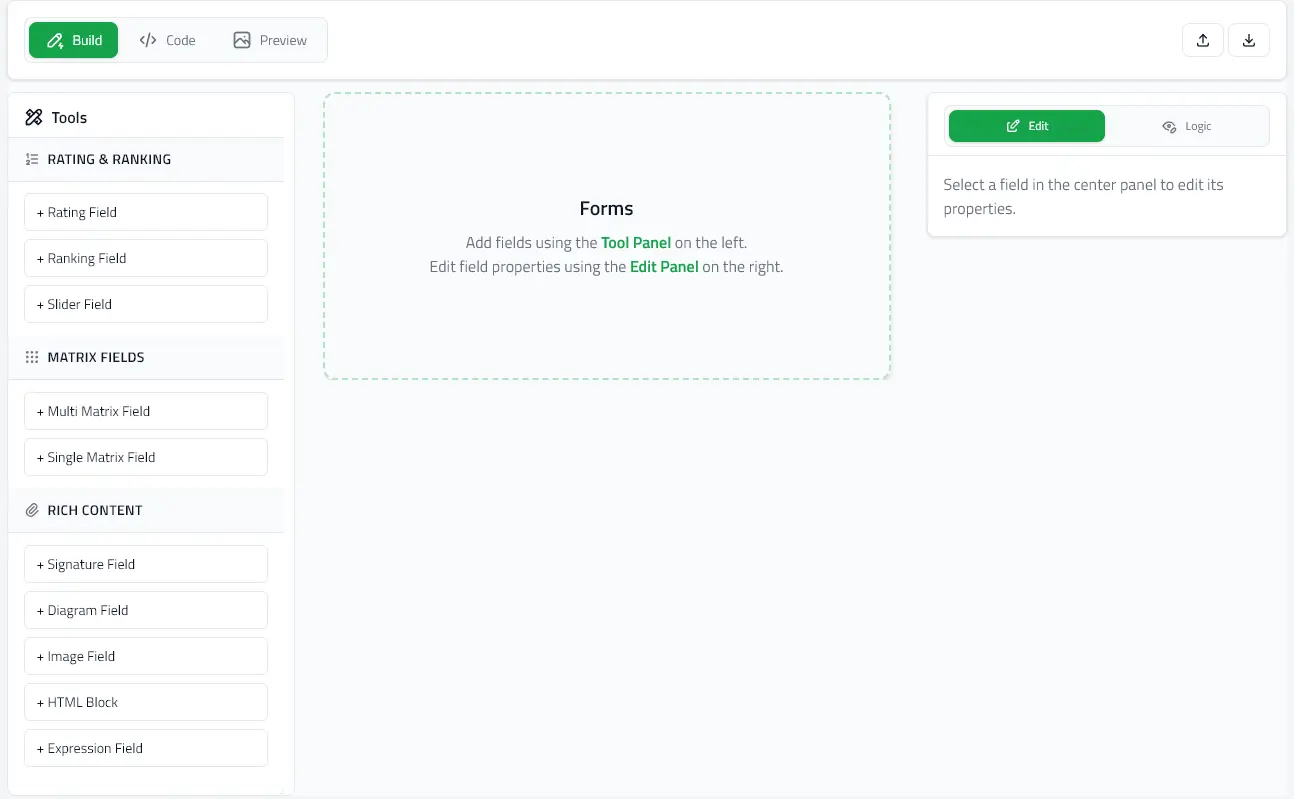
Quick Start: Editor
Get started with @mieweb/forms-editor to build form creation tools.
Basic Example
import React from 'react';
import { QuestionnaireEditor } from '@mieweb/forms-editor';
function FormBuilder() {
const handleChange = (updatedFormData) => {
console.log('Form updated:', updatedFormData);
};
return (
<QuestionnaireEditor
onChange={handleChange}
/>
);
}
export default FormBuilder;
With Initial Fields
Start with pre-populated fields:
import React from 'react';
import { QuestionnaireEditor } from '@mieweb/forms-editor';
function FormBuilder() {
const [formData, setFormData] = React.useState({
schemaType: 'mieforms-v1.0',
title: 'Patient Intake Form',
description: 'Collect basic patient information',
fields: [
{
id: 'section-demographics',
fieldType: 'section',
title: 'Demographics',
fields: [
{
id: 'name',
fieldType: 'text',
question: 'Full Name',
required: true
},
{
id: 'dob',
fieldType: 'text',
question: 'Date of Birth',
required: true
}
]
}
]
});
return (
<QuestionnaireEditor
initialFormData={formData}
onChange={setFormData}
/>
);
}
Start in Preview Mode
Launch the editor in preview mode:
<QuestionnaireEditor
initialFormData={formData}
onChange={setFormData}
startInPreview={true}
/>
Hide Unsupported Fields
Filter out experimental or unsupported field types:
<QuestionnaireEditor
initialFormData={formData}
onChange={setFormData}
hideUnsupportedFields={true}
/>
Import from YAML
The editor automatically parses YAML or JSON strings:
const yamlString = `
schemaType: mieforms-v1.0
title: Survey
fields:
- id: q1
fieldType: text
question: Your feedback?
`;
<QuestionnaireEditor
initialFormData={yamlString}
onChange={setFormData}
/>
Saving & Exporting
The onChange callback receives the complete form data object with metadata:
const handleChange = (formData) => {
// formData includes:
// - schemaType
// - title
// - description
// - fields array
// Save to localStorage
localStorage.setItem('myForm', JSON.stringify(formData));
// Or send to backend
fetch('/api/forms', {
method: 'POST',
body: JSON.stringify(formData)
});
};
Auto-save in Code Mode
The code editor automatically saves changes when you switch modes:
- No Apply button needed - Changes save when switching to Build or Preview mode
- Smart saving - Only saves if the code is valid and different from current state
- Error prevention - Build/Preview buttons disabled if code has syntax errors
- Visual feedback - Error banner shows syntax issues in real-time
Importing SurveyJS Schemas
Via Code Editor (Paste)
When pasting a SurveyJS schema into the code editor:
- Paste your SurveyJS JSON/YAML
- Confirmation modal appears automatically
- Choose "Yes, Convert" to convert to MIE Forms, or "No, Cancel Paste" to undo
- If converted, see a report of fields converted and dropped
// Just paste this into the code editor and confirm:
{
"title": "Survey",
"pages": [{
"elements": [
{ "type": "text", "name": "firstName", "title": "First Name" },
{ "type": "radiogroup", "name": "role", "title": "Your Role",
"choices": ["Developer", "Designer", "Manager"] }
]
}]
}
Via Import Button
Use the Import button in the editor header:
- Click Import
- Select a SurveyJS JSON/YAML file
- Confirm the schema type in the modal
- Schema is converted and loaded automatically
Programmatically
Pass a SurveyJS schema with the schemaType prop:
const surveySchema = {
pages: [{
elements: [
{ type: 'text', name: 'email', title: 'Email Address' }
]
}]
};
<QuestionnaireEditor
initialFormData={surveySchema}
schemaType="surveyjs"
onChange={setFormData}
/>
The editor will convert it to MIE Forms format and your onChange will receive the normalized schema.
Custom Styling
Hide the header or add custom classes:
<QuestionnaireEditor
initialFormData={formData}
onChange={setFormData}
showHeader={false}
className="custom-editor-wrapper"
/>