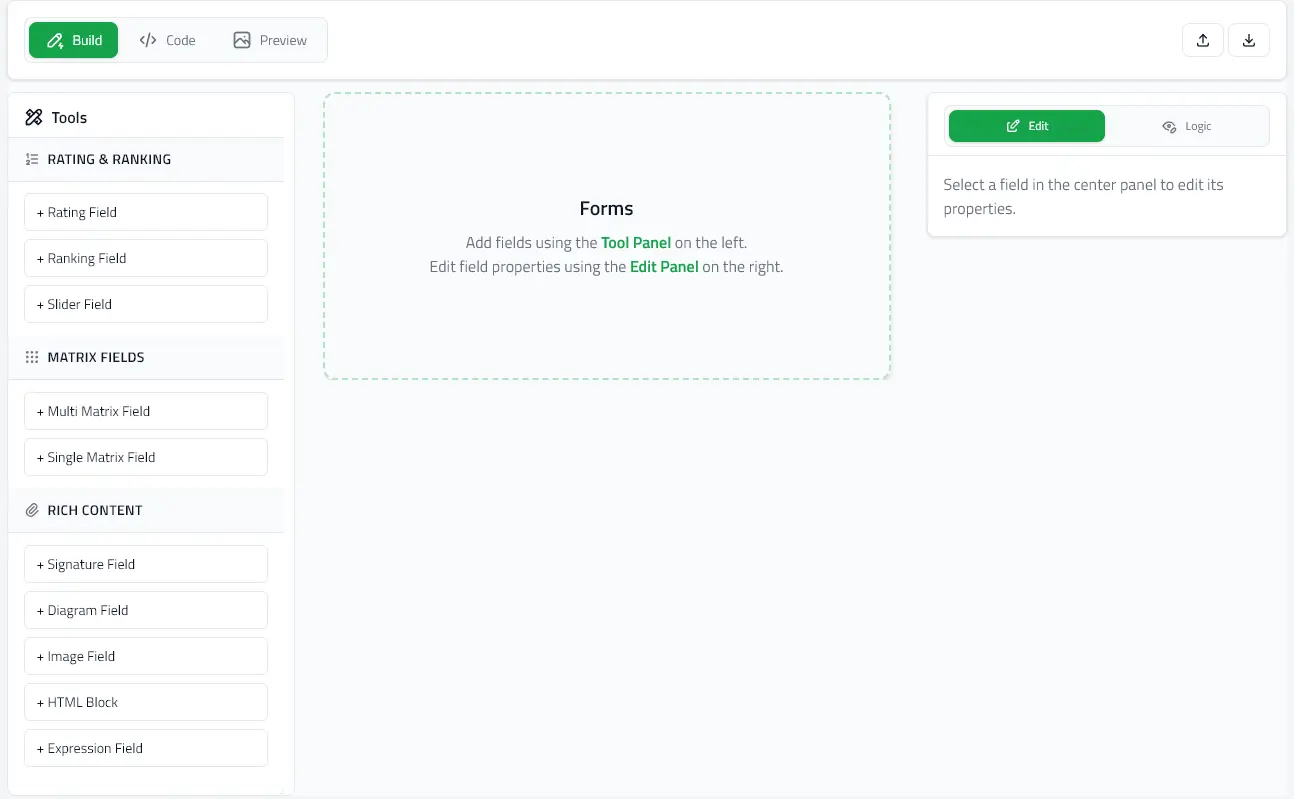
Field Editing
Detailed guide to editing field properties in Build mode.
Selecting Fields
Click any field in the canvas to open its properties panel on the right side.
Visual Indicators
- Selected field - Highlighted with blue border
- Properties panel - Opens on the right
- Field actions - Duplicate and delete buttons appear
Common Properties
All fields share these core properties:
ID (Identifier)
Auto-generated unique identifier (e.g., "name-1", "email-2")
- Purpose: Reference field in expressions and conditional logic
- Auto-generated: Yes, based on question text
- Editable: Yes, but keep unique across the form
- Used in:
enableWhenconditions, expression{fieldId}syntax
Question/Label
The text displayed to users
- Most field types: Use
questionproperty - Expression fields: Use
labelproperty - Section fields: Use
titleproperty - Image/HTML: No question text (display-only)
Required
☐ Required field
- Checkbox: Check to make field mandatory
- Validation: Prevents form submission if empty
- Visual indicator: Shows asterisk (*) next to question
Field-Specific Properties
Text & Long Text
- Question: Field label
- Answer: Placeholder for preview/testing
- Required: Validation toggle
Radio, Checkbox, Dropdown, Boolean
- Question: Field label
- Options: List of choices
- Each option has:
- ID: Auto-generated or custom
- Value: Display text shown to user
- Add/remove options with + and × buttons
- Each option has:
- Selected: Current selection (for preview/testing)
- Required: Validation toggle
Multi-Select Dropdown
Same as dropdown but allows multiple selections:
- Selected: Array of option IDs
Rating & Slider
- Question: Field label
- Options: Rating levels
- Common patterns:
- 1-5 stars
- 0-10 scale
- Custom labels
- Common patterns:
- Selected: Current rating
- Required: Validation toggle
Ranking
- Question: Field label
- Options: Items to rank
- Users drag to reorder items by preference
Matrix (Single & Multi)
- Question: Field label
- Rows: Questions/criteria (each with ID and value)
- Columns: Response options (each with ID and value)
- Single Matrix: One selection per row (radio)
- Multi Matrix: Multiple selections per row (checkboxes)
Multi Text
Multiple labeled text inputs under one question:
- Question: Main heading
- Options: Sub-fields
- Each has:
- Value: Sub-field label
- Answer: Input value
- Each has:
Expression (Calculated)
Computed field based on other field values:
- Label: Display name
- Expression: Calculation formula
- Use
{fieldId}to reference other fields - Example:
{weight} / (({height} / 100) * ({height} / 100))
- Use
- Display Format:
number- Plain numbercurrency- Dollar amount ($)percentage- Percent (%)boolean- True/false result
- Decimal Places: Precision (default: 2)
- Sample Data Fields: Test values for preview
- Add field IDs and sample values to test calculations
Signature
Digital signature capture:
- Question: Field label
- Placeholder: Text shown in empty pad
- Signature Data: Stroke data (JSON)
- Signature Image: Rendered image (base64)
- Required: Validation toggle
Diagram
Drawing canvas with optional background:
- Question: Field label
- Diagram Image: Background image (body chart, dental chart, etc.)
- Placeholder: Text shown before drawing
- Markup Data: Drawing strokes (JSON)
- Markup Image: Rendered drawing (base64)
- Required: Validation toggle
Image
Display-only image block:
- Label: Optional image title
- Image URI: URL or base64 data URI
- Alt Text: Accessibility description
- Caption: Text below image
- Size: Display size
- Alignment: Left/center/right
- Padding: Spacing around image
HTML
Rich HTML content display:
- HTML Content: HTML markup
- Iframe Height: Container height (pixels)
Rendered in sandboxed iframe for security.
Section
Organizational container:
- Title: Section heading
- Fields: Nested child fields
Sections can contain any field types including other sections.
Conditional Logic (enableWhen)
Show/hide fields based on other answers:
Adding Conditions
- Select a field
- Scroll to Conditional Logic section
- Click Add Condition
- Configure:
- Logic Type: AND (all true) or OR (any true)
- Target Field: The field to watch
- Operator: equals, contains, includes, greaterThan, etc.
- Value: Comparison value
Condition Operators
- equals: Exact match (works with text and option IDs)
- contains: Substring match (text fields)
- includes: Array contains value (multi-select fields)
- greaterThan / lessThan: Numeric comparison (expression fields)
- greaterThanOrEqual / lessThanOrEqual: Numeric comparison with equals
Example
Show "Allergy Details" only when "Has Allergies" = "Yes":
Field: allergy_details
Conditional Logic:
Logic: AND
Conditions:
- Target: has_allergies
- Operator: equals
- Value: yes (option ID)
See Conditional Logic Guide for detailed examples.
Field Actions
Duplicate
Creates a copy of the selected field with:
- Same properties
- New unique ID
- Inserted below original
Delete
Removes field from the form permanently.
Warning: Deleting a field referenced in expressions or conditions will break those references.
Tips & Best Practices
Field IDs
- Keep IDs short and descriptive:
name,email,dob - Use consistent naming:
section_demographics,section_medical - Avoid spaces and special characters
- Don't change IDs if field is used in expressions/conditions
Questions
- Be clear and specific
- Use plain language
- Avoid ambiguity
- Include units where needed ("Age in years", "Height in cm")
Options
- Keep values concise
- Use consistent capitalization
- Provide "Other" or "Prefer not to say" when appropriate
- Order logically (alphabetical, numerical, most-to-least common)
Required Fields
- Only mark essential fields as required
- Provide clear error messages
- Test form completion flow in Preview mode
Next Steps
- Editor Modes - Build, Code, and Preview modes
- Conditional Logic - Advanced field visibility
- Field Types - All available field types