Editor Modes
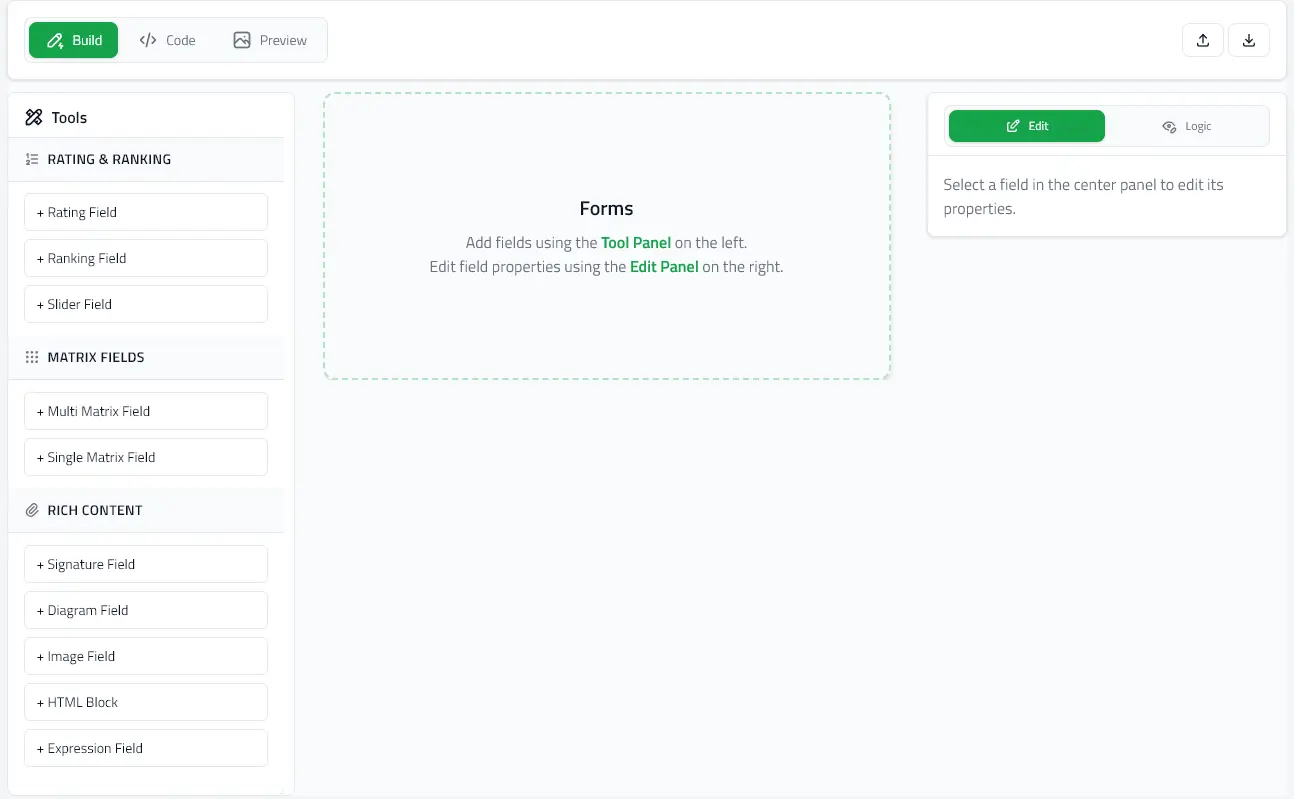
The editor provides three distinct modes for building and testing questionnaires. Switch between them using the header tabs.
Build Mode
Visual form builder with click-to-edit interface.
Features
- Field Library - Add fields from the tool panel on the left
- Properties Panel - Edit field settings on the right when a field is selected
- Form Canvas - Central area showing your form structure
- Reorder Controls - Use up/down arrows to move fields
- Add/Remove - Click field actions to duplicate or delete
Working with Fields
- Add a Field - Click any field type in the left panel
- Select a Field - Click on a field in the canvas to edit its properties
- Edit Properties - Use the right panel to modify:
- Question text
- Field options (for radio, check, dropdown, etc.)
- Required status
- Conditional logic (enableWhen)
- Drag & Drop - Reorder fields by dragging (WIP)
- Reorder Fields - Use up/down arrow buttons to move fields (WIP)
- Delete Fields - Click the trash icon on a field
Sections
Organize fields into logical groups:
- Add a Section Field from the tool panel
- Section fields have a
titleinstead ofquestion - Nested fields appear indented under the section
Code Mode
Monaco-powered code editor for direct JSON/YAML editing.
Features
- Syntax Highlighting - JSON/YAML with color-coded formatting
- Format Toggle - Switch between JSON and YAML
- Auto-formatting - Pretty-print with proper indentation
- Live Validation - Real-time syntax error detection
- Auto-save - Automatically saves when switching tabs (no Apply button needed)
- Error Prevention - Build/Preview buttons disabled until syntax errors are fixed
- Full Schema Access - Edit metadata, fields, and structure directly
- Schema Conversion - Automatically detects and converts SurveyJS schemas
Auto-save Behavior
The code editor auto-saves your changes when you switch to Build or Preview mode:
- No need to click an "Apply Changes" button
- Changes only save if the code is valid JSON/YAML
- If there are syntax errors, you must fix them before switching modes
- The editor compares your code with the current form state and only saves if changes were made
Schema Conversion on Paste
When you paste a SurveyJS schema into the code editor:
- The editor automatically detects it's a SurveyJS schema
- Shows a confirmation modal: "Yes, Convert" or "No, Cancel Paste"
- If you choose Yes:
- Converts the schema to MIE Forms format
- Updates the editor with the converted schema
- Shows conversion report (fields converted, fields dropped)
- If you choose No:
- Cancels the paste operation
- Restores the previous code content
This gives you immediate control over schema conversion without accidentally overwriting your work.
When to Use Code Mode
- Bulk editing multiple fields
- Copy/paste field definitions
- Advanced schema modifications
- Viewing complete form structure
- Fine-tuning properties not exposed in Build mode
- Importing SurveyJS schemas
SurveyJS Schema Conversion
Automatic Detection:
- Paste a SurveyJS schema → Get immediate confirmation prompt
- Import a SurveyJS file → Auto-detects schema type during import
Note: For optimal compatibility and editing features, use MIE Forms schema format. SurveyJS schemas are converted automatically but some features may not be supported.
Tips
- Changes in Code mode auto-save when switching to Build or Preview
- Invalid JSON/YAML shows an error banner and prevents mode switching
- Build and Preview buttons are disabled until syntax errors are fixed
- Use Export to download your schema for external editing
- Format toggle preserves your data when switching between JSON and YAML
Preview Mode
Test your form as end-users will experience it.
Features
- Live Rendering - See exactly how the form appears to users
- Interactive - Fill out the form with sample data
- Conditional Logic Testing - Watch fields show/hide based on answers
- Validation Testing - Check required fields and error states
- Mobile Preview - Responsive layout testing
Testing Checklist
- ✅ All questions display correctly
- ✅ Required fields show validation on submit
- ✅ Conditional fields appear when conditions are met
- ✅ Options are clear and complete
- ✅ Layout works on different screen sizes
- ✅ Navigation flows logically
Limitations
Preview mode is for testing only - data is not saved. Use the renderer component in your app to collect real responses.
Switching Modes
Build → Code
View the generated JSON structure of your form.
Code → Build
Apply your JSON changes and return to visual editing.
Build/Code → Preview
Test your form with live interactions.
Preview → Build/Code
Return to editing after testing.
Next Steps
- Importing & Schema Conversion - Import existing forms
- Export Options - Download your forms
- Field Types - All available field types